


PARTS RETURN
Using 'Parts Return' section user can place a request to return the parts to OEM. Once his request for parts return is accepted by dealer rep / supervisor or manager he can also generate a packing list of returning parts and can also place a request for call tag from the Intelli Catalogue itself.
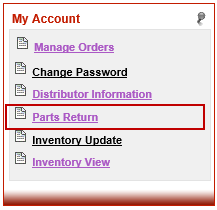
1. Click the 'Parts Return' link under My Account
section on home page to go to 'Parts Return' page.
2. Parts return page is divided in 2 sections. The top section provides the statistics of all the requests submitted by user and the bottom section lists down all the requests created by the user with their exact status. User can click the 'Detail' link at the end of every row to see the complete details related to a part return request.
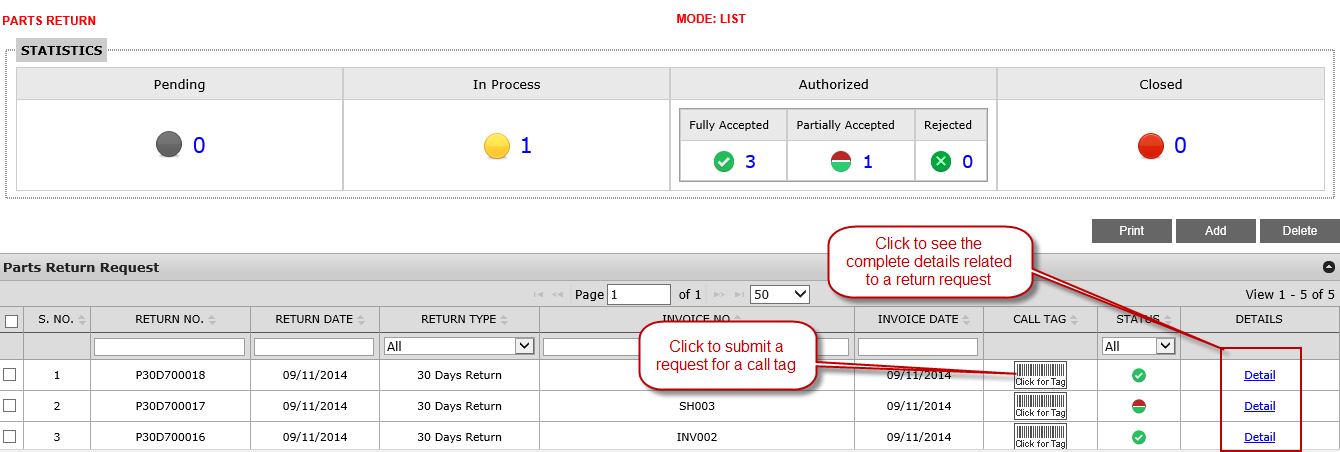
3. All the part return request by user has been classified in 4 broad categories Pending, In Process , Authorized & Closed
3a. Pending:- Pending is also the default status which means any part return request submitted / created by the user will have status as pending. So pending means that the request has been created but has not yet authorized by the admin representative.
3b. In Process:- A parts return request has to go to different designated authorities depending on the exact amount of parts. In such a scenario the moment part return request has been authorized by the first level of administrator the status changes to 'In Process' which means request is still in process.
3c. Authorized:- Once the parts return request will be authorized by one or more designated authorities the status changes to 'Authorized' . However under authorized there can be 3 different sub categories
i) Fully Accepted
- When the request for all the parts has been accepted by the authorized
representative.
ii) Partially Accepted - When the request for parts has been partially accepted by the authorized representative.
ii) Rejected - When the request for parts has been completely rejected by the authorized representative.
3c. Closed:- After getting the authorization from OEM dealer returns the parts. OEM receives the parts returned by the dealer and finally pass on the credit for authorized quantity. Once the OEM receives the parts from dealer status changes to 'Closed' .
4. User need to perform the following sequence of steps to create a part return request
1. Click the 'Add' button on parts return
page to create a new return request.
2. Choose from the available 2 options '30
Days Return' & 'Others' . Only for the reason Annual return or Dealer
Close out user has to choose others options for rest of the reason user
has to choose '30 Days Return' option.
3. The moment user selects the '30 Days Return'
tab a unique return request number will get generated. As a next step
user has to select a reason for returning the parts from the list of available
reasons in reason combo box.
4. Based on the "invoice days" rule defined in administrator module for the selected return reason all the parts from all invoices that fall within that date range will appear in a grid. For a part to get listed in the grid it must not be defined a "Non returnable part"
5. As a next step dealer can select the parts he wants to return using the check box in the grid. If dealer want to define a different remark for each part than he has to individually select a part and click the 'Add' button to add that part to return request list whereas if he wants to provide a common remark or don't want to provide a remark at all he can select the multiple parts and add them to the return list in one go. It is important to note that dealer cannot add parts from 2 different invoice in a single parts return request. If a dealer wants to return the 2 parts from 2 different invoices he need to create 2 different parts return request.
6. After selecting the parts in the grid dealer has to define the exact quantity of parts he wants to return. dealer can do so by defining the same in 'R Quantity' column which is a short for return quantity. By default system will show purchase quantity as the return quantity. It is important to note that system doesn't permit returning more than purchase quantity
7.The parts grid will also show the cost price of parts based on the dealer invoice details.
8. Depending on return reason selected by the dealer a restocking fee may or may not be applicable on the returning parts. If a restocking fee will be applicable the value for same will be visible in column 'Restocking Fee' . Taking the mouse over the value in that column dealer can see the applicable percentage. If no restocking fee is applicable based on the selected return reason no value will come in restocking fee column.
9.Parts grid will also list down the Net return price applicable for dealer after applying the restocking fee (if applicable) under the column 'Dealer Net'.
10.The moment user press the 'Add' button after
selecting the desired parts and entering the desired return quantity a
remarks popup text box will appear on the screen. Enter the remarks to
best describe the reason for return or leave that blank. Click OK to add
the selected parts to return list
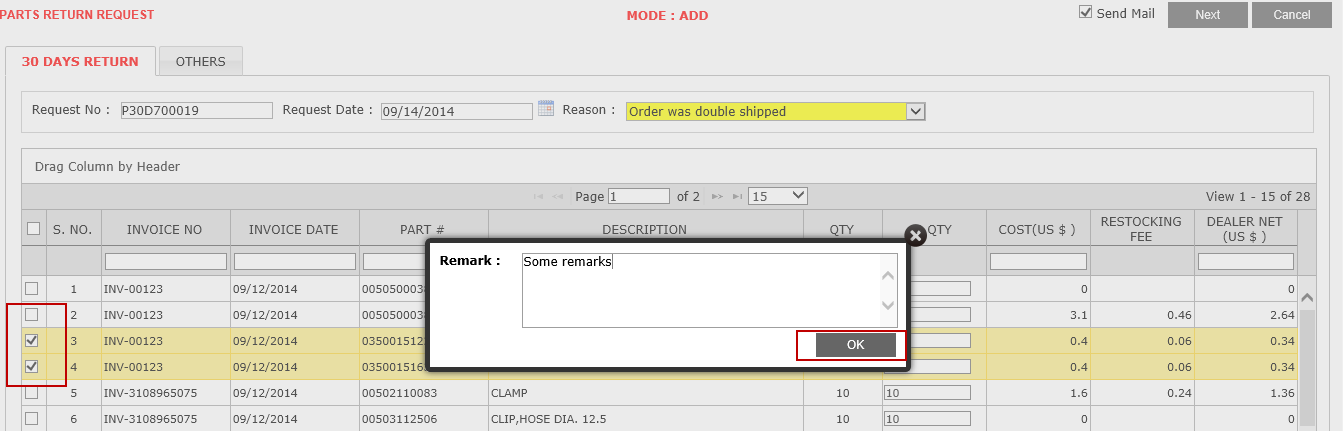
11. After adding the desired parts in the above manner click the 'Next' button at the top right hand corner of 'Parts Return' page to proceed further.
12. To intimate the admin by a mail check the option 'Send Mail' on the left side of 'Next' button.
13. As a result of above step pick up detail page will appear where dealer has to specific the exact address from where parts will be picked up and shipped to Mahindra. Dealer can specify a new address or can choose to pick from the existing address which he has used during the previous return request.
14. The moment dealer selects one of the existing address by click the link 'Select & Continue' a message reconfirming the action will appear on the screen .
15. Clicking OK will process the return request of the dealer and an message confirming the successful submission along with the associated return request number will appear on the screen.
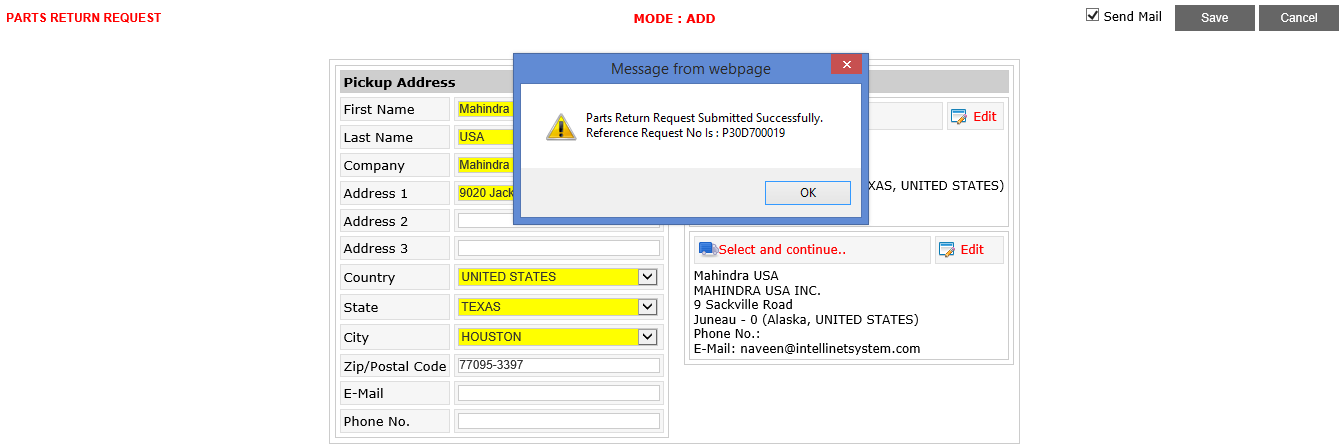
16. Clicking OK will take the user back to 'Parts Return' list page. The new request submitted by dealer will get listed at the top in return request grid.