


SELECT GROUP
Selecting the desired group from 'Group' page
will direct the user to 'Group' Page. To Select a Group user need to perform
the following sequence of steps
1. Select a group by clicking the image of desired
group or by clicking the group name coming on right hand side.
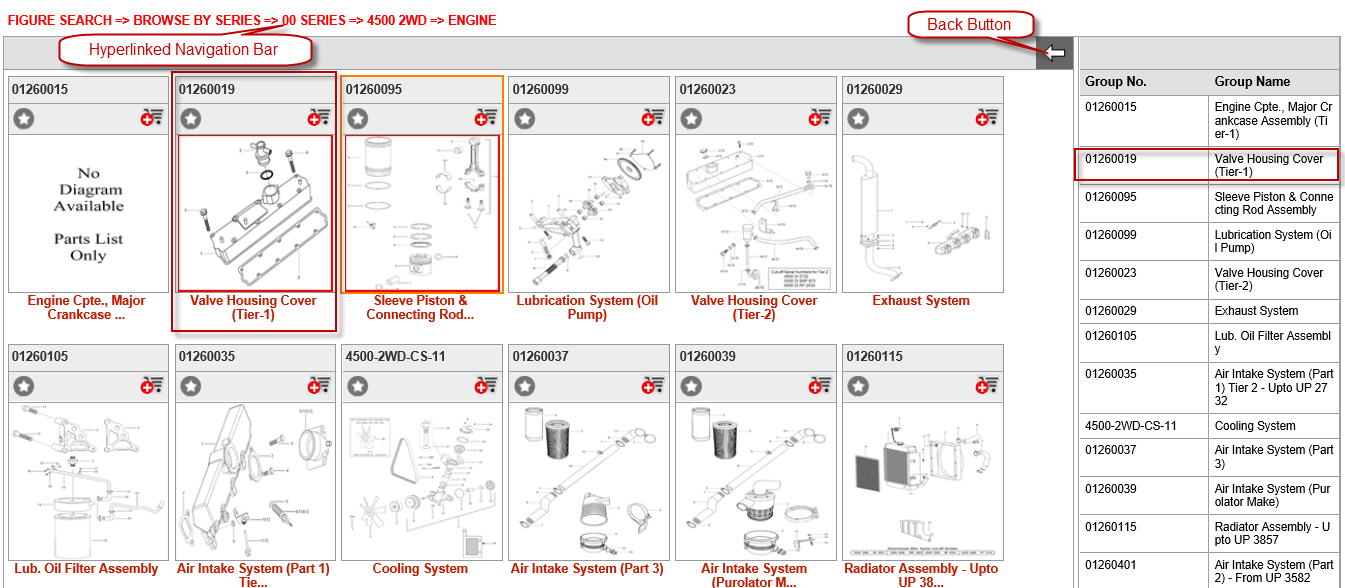
The 'Group' page comprises of following two sections:
|
Section Name |
Description |
|
Group Figure Section |
Displays images of all the groups of the selected group |
|
Group Name |
Displays name of all the groups of the selected group |
User can click the image of preferred group to select that or user can
select the preferred group from the group name list on the right hand
side of page.
2. The navigation path coming at the top of page while using 'Figure Search'
option is completely hyper linked so that user can directly jump to any
level from Group page. User can also make use of back button to go back
to last page.
3.
Apart from going to the illustrated view of assembly by clicking a group
image or name user can also order the required parts from group page by
clicking the 'Add to Cart' icon  coming at the top right hand side of all the assembly image.
4.Clicking the 'Add to Cart' icon will popup 'Add to Order' list page as shown below.
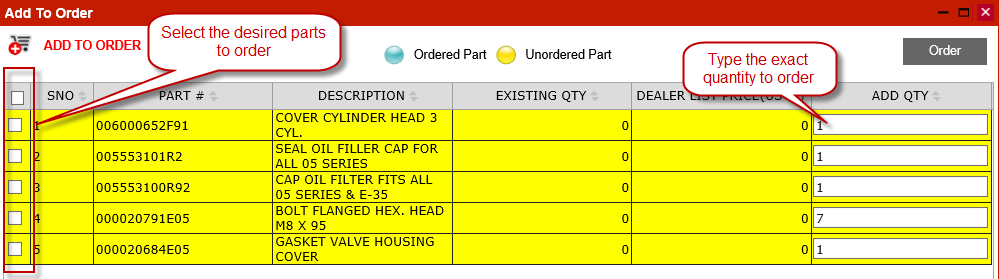
For ordering the parts from 'Add to Order' page user has to select the
desired parts using the check boxes on left hand side, type the desired
quantity in 'ADD QTY' text box on right hand side and click 'Order' button
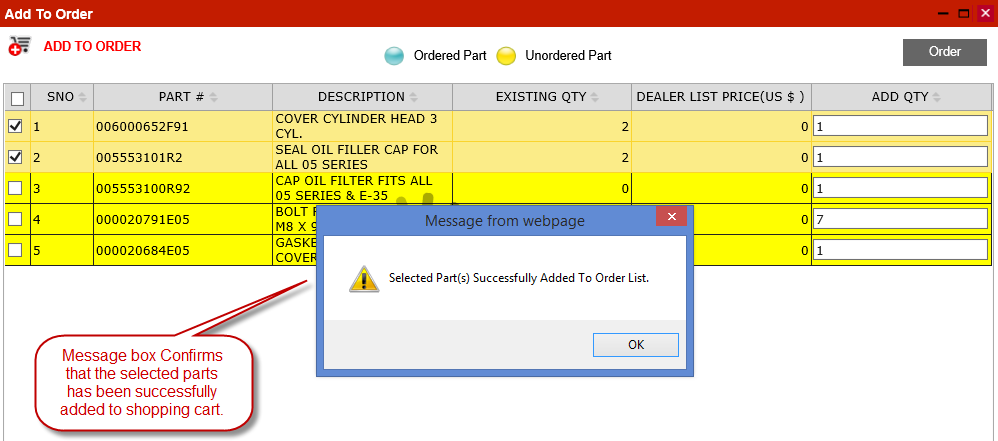
to order the desired parts. After order a message box confirming the successful
addition of parts to order list will appear on the screen as shown below.
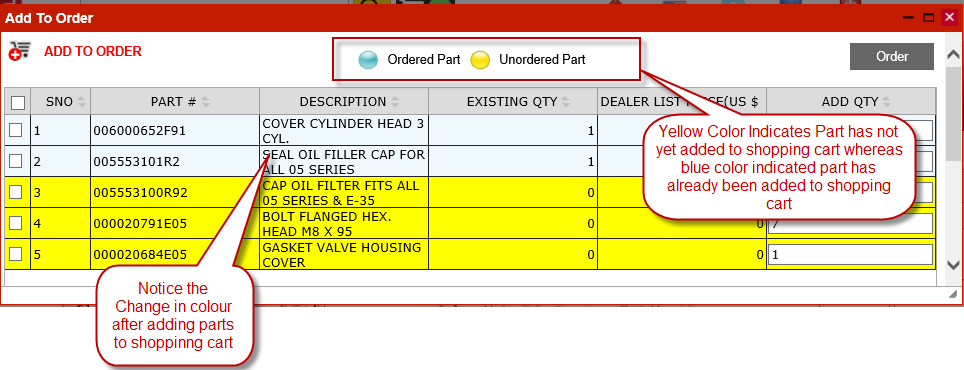
5. 'ADD To Order' pages provides a graphical way to identify whether a part has already been added to shopping cart or not by using the yellow & blue color as indicated by yellow & blue bullet at the top of 'ADD To Order' page. If a part has not been added to shopping cart yet it will get listed in yellow color whereas is a parts has already been added to shopping cart (even from a different model or group) it will get listed with a blue color background making it very easy for the user to determine which parts he has already added to cart.
 Note
Note

Apart from seeing the Group related attachments from 'Group' page Intelli Catalogue also provides another convenient option to search & download the attachments from 'Literature Module'
5.
Group page also provides the facility to add the desired group to 'Favorites'
section. A given group / assembly can be added to the favorites section
by clicking the favorites icon  coming
at the top of every image on group page. Moment a group / assembly is
added to favorites the favorites icon will start glowing with a orange
color
coming
at the top of every image on group page. Moment a group / assembly is
added to favorites the favorites icon will start glowing with a orange
color  indicating that the group / assembly is added to favorites. Clicking the favorites icon again will
remove the group / assembly from the favorites.
indicating that the group / assembly is added to favorites. Clicking the favorites icon again will
remove the group / assembly from the favorites.
Note
Favorites functionality is also available on illustration page. So if a group / assembly is added to favorites the same is also visible the way of favorites icon on illustration page. User can also add or remove group / assembly from favorites from the illustration page.